Frequently asked questions - All FAQs
Need help with your EarMaster software? Start here
Have you encountered an issue with EarMaster or do you have questions about how to set it up and use it? Check out these frequently asked questions.
|
If you had to re-install your operative system several times or made changes to your computer's hardware, you might get that activation error message. But don't worry, it's easy to fix. Please contact our support department (support@earmaster.com), and remember to tell us what serial number you have.
Download EarMaster 7 for Windows or Mac using the link displayed in your purchase confirmation email.
Double-click on the installer that you just downloaded and follow the on-screen instructions. In most cases, you will be able to find the downloaded file in your Downloads folder. Notice: On Mac, you might have to change your security setting so as to allow Apps form the App Store AND Identified Developers like EarMaster ApS, the makers of EarMaster 7.
Once the software has been installed, you can launch it from your list of Applications (Windows) or via the App Launcher (Mac).
In order to use all the features of the software, you need to activate your license. You can proceed in two ways:
Once you have activated your license, all the content included in the license your bought will be unlocked and you will be using a full version. EarMaster Pro 7 Site license must be installed individually on each computer with the regular installer and then activated on each computer with the serial number delivered with the Site license. There is no network installer or unintended installation package for EarMaster Pro 7. For educational features such as result tracking and assignments, please use EarMaster Cloud instead. To activate your license, EarMaster needs to connect to our activation server via the internet. 1. Make sure your computer is connected to the internet. 2. If you are using a Firewall, you will need to allow inbound and outbound connections for EarMaster in your Firewall settings. 3. If none of the above works, please get in touch with our support staff. Registered users can recover their serial number with the Serial number recovery tool. If you bought EarMaster online from the EarMaster webshop, then you were automatically registered. Simply go to the EarMaster serial recovery page to have your serial number sent to you by e-mail. If you bought a box version of EarMaster from a dealer, you can recover your serial number from us only if you registered it at our website. If you didn't register your copy at our website or by sending us the registration card, there is unfortunately nothing we can do. It is therefore very important to register your license if you bought EarMaster from a dealer! Unfortunately EarMaster 5 and EarMaster 6 are not compatible with macOS 10.13 High Sierra and 10.14 Mojave. EarMaster 5 and 6 licenses are of course still valid on the supported OS versions. If you bought your EarMaster 6 license after May 1, 2017 you are entitled to a free upgrade to EarMaster 7. In that case, please send us your serial number, and we will exchange it for a new version 7 s/n. If you bought it before that date, you are entitled to an upgrade to EarMaster 7 with a 50% discount: https://www.earmaster.com/shop/product/earmaster-pro-7-upgrade.html (the discount is already applied). If you are an EarMaster Cloud user, the upgrade is part of the license, so go to the download page provided in the confirmation email that you received when your user account was created and download EarMaster 7 to your Mac. 1) Make sure that you have installed the correct version 2) Make sure that you are entering your serial number correctly If you bought EarMaster as a boxed version, make sure that: - you are not misreading some of the characters: O is often mistaken with Q, 5 with S, etc. If no combination works, please get in touch and we will help you find out what your s/n is. 3) Upgrading to a new version The regular PC/Mac license entitles you to install EarMaster on 2 computers as long as they belong to you and are not used at the same time. The Family Pack entitles your household to install EarMaster on 3 computers. This is a warning in macOS High Sierra and Mojave. It means that you are running a 32-bit application on a 64-bit system. EarMaster 7 is available as a 64-bit application on Mac since August 2019. Make sure to update EarMaster 7 in order to get the 64-bit version. Notice: macOS 10.15 will drop support for 32-bit applications altogether. |
|
Open EarMaster's Preferences and select another sound from the list under Keyboard or Fingerboard settings (depending on what you are using) In some exercises, Microphone input will enabled by default. If Mic input is enabled, you will see a Microphone at the bottom of your screen. But if it isn't, you can activate it by opening the Exercise Options (right-side panel in the exercise window) and activate the Microphone switch. Important: The first time you turn on Mic input in a training session, you will have to go through a Microphone test. This will make sure that EarMaster recognizes the notes you sing. It is very important that you complete this test by singing and holding a tone for a few seconds. If you can't complete the test, then your Mic isn't set up properly and it won't work in the exercise either. EarMaster is converting automatically the sample rate and bit depth of audio coming in and out of it. Setting the sample rate of your card to 44.1 or 48khz and 16 or 24 bits should be all fine. As for drivers, EarMaster will use the default audio driver of your OS (Direct Sound on Windows and CoreAudio on Mac). But you don't need to worry about latency, as EarMaster includes a built-in latency compensation feature. To make MIDI in work, do the following:
1a. [Mac & iOS] No input detected If you use an audio interface with multiple inputs, make sure to plug your Mic into input 1. 1b. [Windows] No input detected If you use an audio interface with multiple inputs, make sure to plug your Mic into input 1. 1c. [Windows] No recording device available 2. Answers not recognized properly Make sure that you complete the Microphone test when starting an exercise that involves singing. If the mic test isn't successful, then your mic won't work either in the exercise. So if you can't pass the mic test, there might be a problem with the way your microphone is set up. Notice that EarMaster will transpose your answers to the octave of the questions automatically. So if a melody is to high or too low for your vocal range, it's not a problem - just sing in an octave that you are more comfortable with.
|
|
EarMaster's Beginner's Course can be used by users of most ages, but for smaller kids who can't read yet, they might need help to understand the introduction to the exercises. The Interval comparison and Rhythm imitation exercises can be used without reading skills and without note reading skills. The rest of the exercise areas in EarMaster require you to either read notes or to read letters, but with help from an adult, all the exercises can be used to teach the child notes rhythms and to develop its aural skills. Yes, you can do that on PC and Mac and it is very easy. In the welcome screen, choose Customized Exercise training mode, and pick a chord or a scale exercise. In the Exercise Setup window, you will find a list of the chords and scales to include in the lesson. At the top right, you will find an "Edit Library..." button. Click there to view the Chord/Scale library of EarMaster and add a new custom one using the "+" button at the bottom of the list. Yes, you can on PC/Mac. All text in EarMaster can be changed. The file "English.lan" is a text file which contains all the English text strings of EarMaster. You can find the language files in the "Language" folder in the installation directory. Just double-click the file to edit it with Notepad. The answer is yes and no. Some exercises in EarMaster don't require any knowledge in music theory, like the Interval Comparison and Rhythm Imitation exercises. On top of that, most of the exercises can be used with Multiple Choice answer buttons or with instrument interfaces (piano, guitar, bass, etc.), instead of entering the tones on the staff. However, it is a very good idea to learn some things about the theory behind intervals, scales, chords and music notation in order to get the most out of EarMaster and, of course, of your musicality. You can use several options to make the exercises harder: * In the Exercise Options, deselect "Silent input" There are many other ways of setting up EarMaster to make the exercises harder, so try to check out the different options and parameters available in order to meet your personal requirements. To add a custom scale in minor, you can simply define it in A instead of C. Users can load their EarMaster profile (settings, results, progression) in 2 different ways:
Working on a daily basis for 5-20 minutes with EarMaster will help you master relative pitch and obtain a better feel of rhythms and harmonies. Usually, people already feel good results after only a couple of weeks, and it only gets better after that, so hang on. Besides training with EarMaster, it is important to challenge your ear in "real life" situations too, like in the rehearsal room or while listening to recordings. It will be a good indicator of how much progress you accomplish. Yes, but only in Customized Activity training mode. You can clear the current results in the current exercise by pressing CTRL+DEL. If you are using one of the EarMaster courses, that option is not available. MusicXML files can contain many different types of notations of music. EarMaster can only import elements that can be used in relation to the program. Therefore, you might experience to get an error message about unsupported elements when you try to import a MusicXML file into EarMaster EarMaster can import the following items:
Yes. Simply open the Exercise Options (top right of the exercise window), and choose either Solfege Absolute (Fixed-Do) or Solfege Relative (Movable-Do) for Tone Naming. Even though EarMaster's main focus is on relative pitch training, you can easily set it up to train perfect pitch too! In Customized Exercise training mode, set the Melodic Dictation exercise to only play one single tone and deselect "Play Tonic of Key". You will then be able to train at identifying single tones without any reference cue. This can happen in Windows 7 if you are using the classic visual theme (Windows 98 look). Using a Windows 7 theme and restarting EarMaster will solve the issue immediately. |
|
If you would like to assign custom exercises to your students and monitor their results, then you should consider acquiring EarMaster Cloud - a complete solution to teach ear training and music theory at all levels. If you would rather simply let your students train with the built-in lessons included in the program and don't need to keep track of their results, the personal licenses of EarMaster should cover your needs. EarMaster is available in different licenses. Compare licenses >> EarMaster Cloud will provide both students and teachers with a license for EarMaster on all platforms, and it can be used both at home and at your school. Licenses are managed online, and all assignments and results are synced automatically via the cloud. Furthermore, even though it's one of the most complete Cloud solutions for musicianship classes available, it is also one of the most affordable ones with prices as low as $3.99 a year per user! If you don't have a budget for ear training software, we also make it possible for schools to invite students to subscribe privately while still being linked to a specific school account. In that case case, teacher licenses are free of charge. For more info, please contact us. You can make custom exercises in EarMaster by using the WORKBOOK EDITOR. The workbook editor is available from the welcome screen of EarMaster on PC and Mac if you are logged in as a Teacher with your EarMaster Cloud account. For more details on how to proceed with the Workbook Editor, please visit the EarMaster Support section for Teachers. Assignments are custom workbooks created with the Workbook Editor of EarMaster. The Workbook Editor is available from the welcome screen on PC and Mac in EarMaster when you are logged in with an EarMaster Cloud teacher account. Once your assignment is ready, you can open the Assignment Manager of EarMaster 7 on PC and Mac to assign your custom workbook to a class or specific students. Read more >> Notice that you will only see the classes in which you are enrolled. If you r Admin hasn't added you to a class, you will only see students that haven't yet been placed in a class. If your school has a EarMaster Cloud account, the results of your students will be automatically synced with the Cloud. You will be able to review their results in the "Student results" window of EarMaster on PC/Mac when you are logged in with your Teacher account. Notice that results obtained by the students using the Customized Exercises training mode are not synced, as this training mode is a free playground for them to train freely without being monitored, as opposed to courses, workshops and assignments. |
|
The PC/Mac license of EarMaster only unlocks the PC and Mac versions of EarMaster. The mobile versions of EarMaster are sold separately as in-app purchases or as part of an EarMaster subscription. To access all versions, the ideal solution is the EarMaster subscription instead of platform-dependent licenses. To unlock the RCM Voice Level 1-6 course you need a separate license which you can order here: https://www.earmaster.com/shop/product/rcm-voice-levels-1-to-6.html Since the integrity of the serial number that you are upgrading from must be verified, upgrades are processed manually. For that reason, upgrades are only delivered within our office hours: Monday to Friday, 9 a.m. to 5 p.m. GMT+1. As soon as your order has been processed by our team, you will receive a new email with a new serial number in exchange of the old serial number. No, you won't have to pay full price. We always offer the possibility to upgrade to a newer version at a much lower price than the straight full version. For instance, EarMaster 4, 5 or 6 owners can upgrade to EarMaster 7 for half the price of a regular license. The EarMaster installation program will be available for download for many years after your purchase. Just download it again to your new computer. The most important thing is that you keep your serial number (license) that you get when you purchase EarMaster. This serial number is always needed when you install EarMaster. Usually this isn't available. However, we do offer free licenses for members of our street team, which makes a lot of sense for students to join. It requires you to put up a few posters on your school, or make an online video about EarMaster once every 6 months. It is a very easy and fast way to earn yourself a free license to train your ears. You can read more or sign up here: https://www.earmaster.com/community/join-our-street-team.html The DOWNLOAD version consists in a download link and a serial number. The BOXED version includes a printed quickstart guide and a memo card featuring the circle of fifth on one side, and our interval song chart on the other. Notice that in certain countries such as the USA, Canada, Germany, Austria, Switzerland or China, the content of the box may differ from the edition available from us. Buying a license to use EarMaster instead of using a cracked version is very simply showing that you value, support and help our past and future work. We are not a multinational company, we have no hidden agenda, we are a small company of passion-driven musicians from various horizons who try to live off our love for music and technology. We even offer free - and fast - support. Every single user buying a license not only confirms to us that we are doing a good job, but also helps us improve the programs we make. Don't cheat the future generations of EarMaster users, and support the development of your favorite ear training program :) Thank you!
The code you received is used to create an EarMaster account on this page. Once your account has been created, you will receive a login by email, which you can use in EarMaster on all platforms to unlock all exercises and courses.
|
|
Yes, you can do that with the EarMaster subscription for individuals or with our educational solution EarMaster Cloud. Yes, EarMaster is available for iPhone, iPad, Android phones, Android tablets, and Chromebooks. No, unfortunately, but perhaps it will happen in the future if our development tools permit to do so. Until then, many users have reported positive experiences using EarMaster with WINE, so perhaps you could give it a shot and download the trial version. |
|
To reload all your previous purchases, open the list of available in-app purchases by tapping the shopping cart icon at the bottom right corner of the App's home screen, and tap Restore purchases. The App will then unlock all the modules and courses bought previously with the Apple ID or Google account in use on your device. No, unfortunately. EarMaster for iOS is sold as in-App purchases valid in the iOS App only. To access EarMaster on all platforms, the solution is an EarMaster subscription instead of platform-dependent purchases. |
|
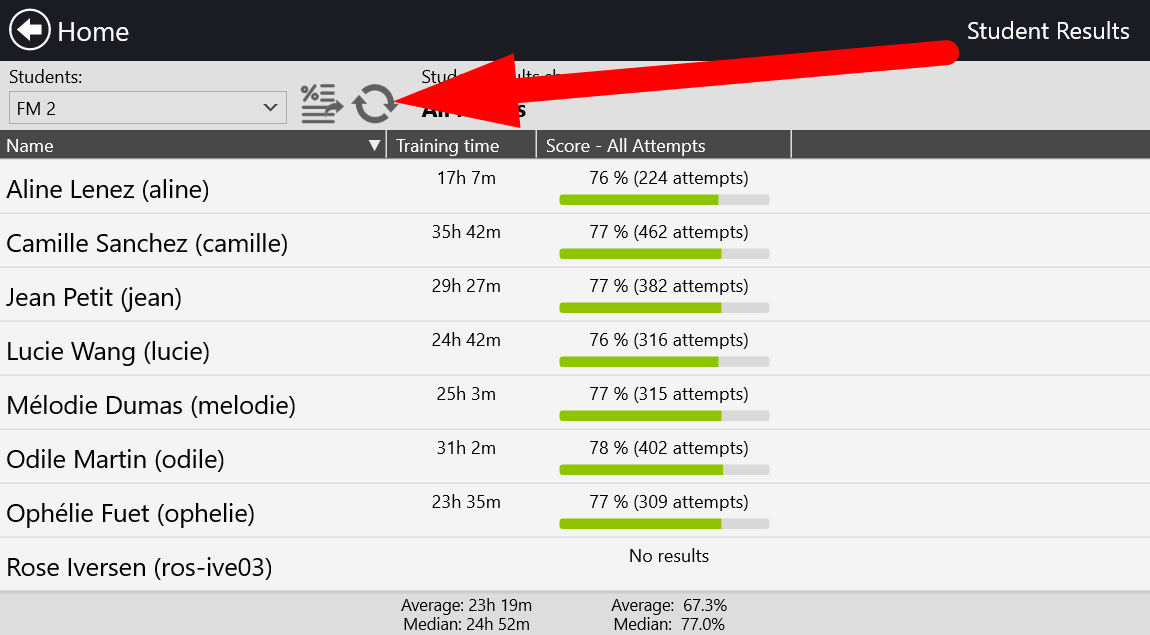
Syncing problems can be caused by an obsolete local cloud cache. Fortunately this is a rare problem, but if it happens for some reason, please follow the the instructions below. Error message saying that user does not exist If you get an error message saying that a user does not exist, then go to STUDENT RESULTS and click on the Refresh icon while holding the ALT key (alt/option key on Mac) on your computer keyboard.
If clicking Alt+"Refresh" doesn't solve it, try clearing the cloud cache by following the steps below. Student users or student results our of sync If the students and/or their results, as they appear in EarMaster in Teacher View, are out of sync with the data in the cloud, you should try clearing the cloud cache in the EarMaster app. This could be, for example, if you have deleted or created users in the admin dashboard but the changes are not reflected in the app. Or of Student Results seem to be out of sync. You can clear the cloud cache which will force the app to fetch the newest data from the cloud. You will find a step-by-step tutorial on this page: https://www.earmaster.com/support/earmaster-cloud-support.html If you don't remember your admin login, then click on the "Lost your password?" link below the login button at https://cloud.earmaster.com to get a new admin password. Yes, you can. If you add ?[user name] after your own email alias for each of the students that you are adding, then you will receive all the system emails sent to those students in your personal inbox. For example:
etc. First of all, make sure that you have entered your user credentials exactly as they appear in the email you received from EarMaster Cloud. Check that caps lock isn't active while you you are typing your login, as the information is case-sensitive. If it still doesn't work, you can obtain a new EarMaster Cloud password here: https://www.earmaster.com/support/earmaster-cloud-login-recovery.html If the 2 solutions above didn't help, then contact your teacher or the person in charge of EarMaster Cloud at your school, and have them check that your account is still active.
If content is locked, there can be 2 reasons: 1. You haven't successfully connected the app to the cloud account of your school. To do that, click/tap on the Cloud-shaped icon at the top left of the start screen and type your user login. If you have connected the app successfully, the Cloud-icon should show a green "ON" status and display the text "Online". 2. You haven't been granted "License" privileges by the admin of the account of your school. IN that case, ask the admin of your school to go to the Manage Users panel of the admin website of EarMaster in order to grant you a license. Test a workbook Test the assignment feature Important notice: It is not advised to test the assignment feature with a real class. Any student of that class who will open EarMaster while your test workbook is being assigned to it will see your test material, and it won't go away before the student actively marks it as complete. The annual license subscription may be cancelled anytime with 30 days notice prior to the renewal date by sending an email to sales@earmaster.com. The same condition applies for downsizing a license, i.e. decreasing the number of users. Adding users to an existing annual license can be done with a few days' notice. This follow the standard pricing meaning that if you want to go from 100 to 130 users, you will pay the price corresponding to buying an annual license for 30 users. The price will then be adjusted according to the renewal date of the already existing agreement. So if you buy license for some extra users for the remaining 6 months of an annual term then you will pay 50% of the full price for an annual license for that amount of users. Please contact sales@earmaster.com. |
|
You can cancel your subscription very easily by logging into your dashboard and using the "Cancel subscription" button. As soon as you have cancelled your subscription, the current subscription period will not be renewed. You retain however access to EarMaster until the current period that you have paid for is over (month or year, depending on the plan you are on). Please check you email inbox to find your EarMaster login and instructions on how to use it to unlock everything in EarMaster. Notice: You might see a place when you can type a serial number. This is only for regular licenses for PC and Mac only, so you can simply disregard it. You can obtain invoices for your payments in your dashboard under View payments. |